 haopengzhan
f52b3fe9e4
haopengzhan
f52b3fe9e4
- Migrate historical posts, localized assets, and 103 comments
- Colocate media into posts/<slug>/images/ and remove wp-content
- Add native bilingual support for ai-can-change post (English default, /zh variant)
- Support clean taxonomy routing (/category/:category and /tag/:tag)
- Dynamically populate categories and tags in sitemap.xml
- Fix header scroll padding/margin offsets for anchor and reference links
- Constrain image and media widths to prevent content overflow
- Redesign homepage recent posts to 4 compact editorial cards
- Restore valid binary favicon.ico and high-res icon assets
- Remove placeholder content and sample test comments
206 lines
8.5 KiB
Markdown
206 lines
8.5 KiB
Markdown
---
|
||
title: "Using Gemini-CLI and MCP server to organize my dropbox"
|
||
date: 2025-08-31
|
||
author: "Pengzhan Hao"
|
||
category: "Tech"
|
||
tags: ["AI Era","Dropbox","Gemini","LLM","Productivity"]
|
||
cover: "/posts-assets/using-gemini-cli-and-mcp-server-to-organize-my-dropbox/images/cover.png"
|
||
excerpt: "I think many people face the same dilemma I did: we don’t want to lose data, so we simply dump everything into cloud storage (like Dropbox(https://www.dropbox.com/)). The same thin..."
|
||
---
|
||
I think many people face the same dilemma I did: we don’t want to lose data, so we simply dump everything into cloud storage (like [Dropbox](https://www.dropbox.com/)). The same thing happens when I back up my computer — I often do it in bulk, with big gaps between backups. Each time, I come up with a slightly different way of organizing files. Over the years, this inconsistency has turned my cloud storage into a dumping ground, wasting both space and mental bandwidth.
|
||
|
||
Another pain point is photos. Every time I consider organizing them — deleting the meaningless ones and sorting the rest — I get overwhelmed by the sheer size of the task and put it off.
|
||
|
||
This is exactly the kind of tedious work AI is great at. Unlike more creative tasks where large language models (LLMs) can hallucinate, organizing files is straightforward and rules-based. It felt natural to me that AI should be able to help. For a long time, though, I didn’t know how to get started.
|
||
|
||
When agent modes became mainstream in AI platforms, I thought I had found the answer. But after trying ChatGPT’s web-based agent, I was shocked at how clumsy it was — watching it fail to click a simple checkbox in the Dropbox web client was painful. After wasting two hours, I gave up.
|
||
|
||
That’s when I started looking into the [MCP protocol](https://modelcontextprotocol.io/) and realized it could help. Unlike GUI-based agents that burn tokens mimicking mouse clicks, MCP makes everything machine-readable and structured. After a bit of research, I decided to try [Gemini-CLI](https://github.com/google-gemini/gemini-cli) (which recently topped GitHub’s trending charts) together with a third-party [Dropbox MCP server](https://github.com/amgadabdelhafez/dbx-mcp-server).
|
||
|
||
## Quick Setup
|
||
|
||
### Installing Gemini-CLI
|
||
|
||
This part is straightforward. Just follow Gemini-CLI’s [GitHub README](https://github.com/google-gemini/gemini-cli?tab=readme-ov-file#-installation).
|
||
I tested on my MacBook and simply used Homebrew to install it:
|
||
|
||
```bash
|
||
brew install gemini-cli
|
||
```
|
||
|
||
After installation, you need to authenticate Gemini-CLI. You can either:
|
||
|
||
- Run `gemini-cli`, type `/auth`, then select **1. Login with Google**
|
||
|
||
- Or use your [Gemini API Key](https://ai.google.dev/gemini-api/docs/api-key) (see the official tutorial)
|
||
|
||
### Running MCP Server
|
||
|
||
Instructions for the Dropbox MCP server can be found in its README, or you can follow these steps:
|
||
|
||
```bash
|
||
git clone https://github.com/amgadabdelhafez/dbx-mcp-server.git
|
||
cd dbx-mcp-server
|
||
npm install
|
||
npm run build
|
||
npm run setup
|
||
```
|
||
|
||
During setup, you’ll need to create a Dropbox app in the [Dropbox App Console](https://www.dropbox.com/developers/apps). Make sure to grant all required permissions, then provide the details back to the interactive shell when prompted.
|
||
|
||
Once that’s done, the setup will open a browser window asking you to authenticate your Dropbox app. After login, you’ll be redirected to a local URL like this:
|
||
|
||
```
|
||
http://localhost/?code=WBjFx90NRQwdv8TM71kf343coS7Q5J2l8Wnqw
|
||
```
|
||
|
||
Copy the `code` back into your shell to complete the configuration.
|
||
I recommend selecting **1. Generate Claude Desktop config** when asked, which will automatically update your Claude configuration:
|
||
|
||
```
|
||
Would you like to generate MCP configuration files?
|
||
1. Generate Claude Desktop config
|
||
2. Generate Cline config
|
||
3. Generate both
|
||
4. Skip
|
||
|
||
Enter your choice (1-4): 1
|
||
```
|
||
|
||
You’ll then see confirmation that the Claude Desktop config has been updated.
|
||
|
||
### Configuring Gemini for MCP Servers
|
||
|
||
Now copy the MCP configuration into Gemini-CLI’s `settings.json` file located at `~/.gemini/settings.json`.
|
||
Make sure to allow the `dbx-mcp-server` in the `mcp` section, for example:
|
||
|
||
```json
|
||
{
|
||
...
|
||
"mcp": {
|
||
"allowed": [
|
||
"dbx-mcp-server"
|
||
],
|
||
"excluded": []
|
||
},
|
||
"mcpServers": { // Copied from Claude Desktop config
|
||
"dbx-mcp-server": {
|
||
"command": "node",
|
||
"args": [
|
||
"/tmp/Github/dbx-mcp-server/build/src/index.js"
|
||
],
|
||
"env": {
|
||
"DROPBOX_APP_KEY": "...",
|
||
"DROPBOX_APP_SECRET": "...",
|
||
"DROPBOX_REFRESH_TOKEN": "..."
|
||
},
|
||
"disabled": false,
|
||
"autoApprove": []
|
||
}
|
||
}
|
||
}
|
||
```
|
||
|
||
Finally, restart Gemini-CLI. Run the command `/mcp list` and you should see the `dbx-mcp-server` listed as ready, with its available tools:
|
||
|
||
```
|
||
Configured MCP servers:
|
||
|
||
🟢 dbx-mcp-server - Ready (13 tools, 2 prompts)
|
||
Tools:
|
||
- copy_item
|
||
- create_folder
|
||
- delete_item
|
||
- download_file
|
||
- get_account_info
|
||
- get_file_content
|
||
- get_file_metadata
|
||
- get_sharing_link
|
||
- list_files
|
||
- move_item
|
||
- safe_delete_item
|
||
- search_file_db
|
||
- upload_file
|
||
```
|
||
|
||
## How I Use It
|
||
|
||
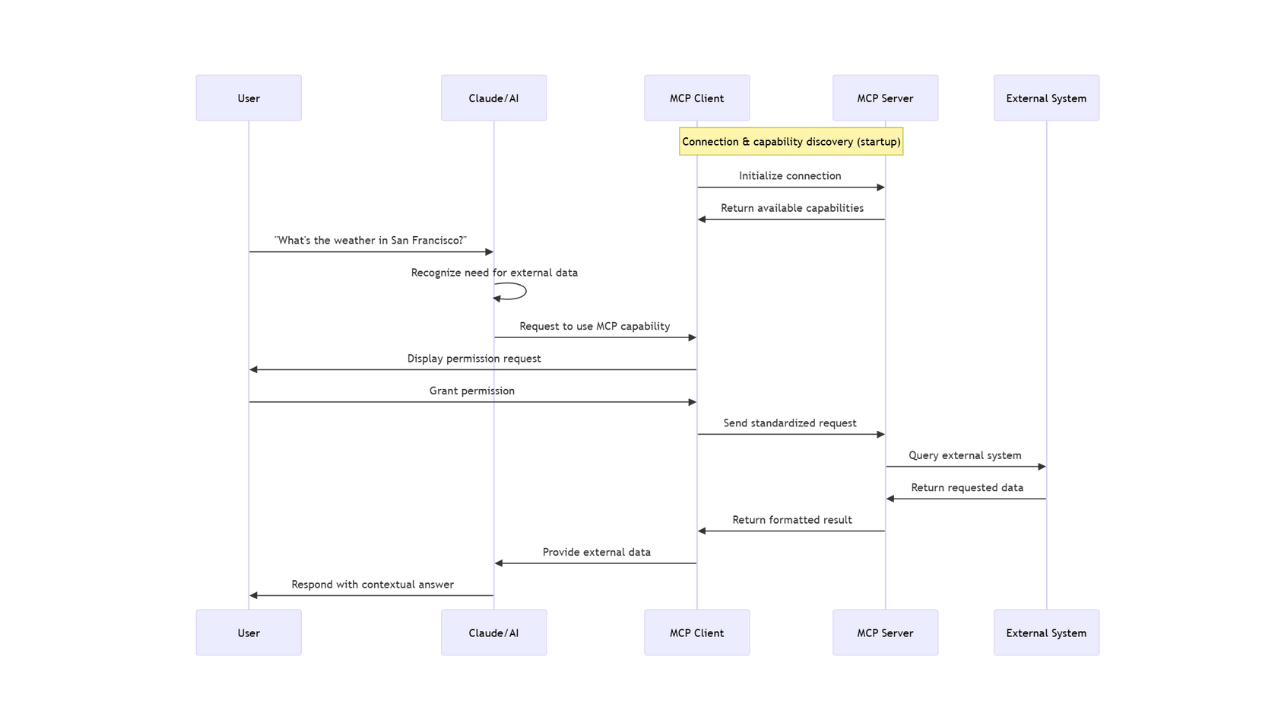
I’m not going to dive deep into how MCP works — I’m a newbie myself. But I did find this [blog post](https://www.descope.com/learn/post/mcp) extremely easy to follow, especially with its self-explanatory flow chart:
|
||
|
||
|
||
|
||
Below are some of the prompts I’ve tried and what I learned from them.
|
||
|
||
---
|
||
|
||
### Prompt 1
|
||
|
||
**Prompt:** Could you analyze all my major folders (top 3 levels) and give me a new directory tree structure I can further use?
|
||
|
||
**Result:**
|
||
|
||
- ❌ The folder suggestions still looked strange and needed a lot of guidance.
|
||
|
||
### Prompt 2
|
||
|
||
**Prompt:** There are a lot of unorganized files in this folder. Could you categorize them in a general way that avoids overcomplicating or fragmenting into too many folders or nested folders? After that, generate a plan on how to move them and ask for my approval before execution.
|
||
|
||
**Result:**
|
||
|
||
- ✅ The assistant generated a plan and asked for feedback.
|
||
|
||
- I provided additional suggestions:
|
||
|
||
Took ~20 conversation rounds before it could reliably categorize based on file content.
|
||
|
||
- ⚠️ **Privacy note:** This prompt may leak personal information to the LLM service. Be cautious.
|
||
|
||
- Time: ~20 minutes of planning, ~400 files categorized. (Execution time not measured — I multitasked while it ran.)
|
||
|
||
### Prompt 3
|
||
|
||
**Prompt:** Could you scan all non-target folders, find empty ones, list them, and then delete them after my review?
|
||
|
||
**Result**: ✅ Successfully executed and correctly removed empty folders.
|
||
|
||
### Prompt 4
|
||
|
||
**Prompt:** Find all folders that could be merged based on name similarity (and path).
|
||
|
||
**Result:** ✅ Found 16 folder pairs that could be merged.
|
||
|
||
## Personal Feelings and Conclusion
|
||
|
||
Even though MCP + Gemini-CLI can achieve very good performance on some tasks, it’s still difficult for even the most advanced LLMs to fully understand situations and consistently make the right calls based on their own analysis. Human input is still essential.
|
||
|
||
Beyond that, I had five strong personal takeaways:
|
||
|
||
-
|
||
|
||
**Prompt size limitations**
|
||
Even with a 2M token context, it’s tiny compared to human memory. Using flat, non-hierarchical memory structures for LLMs is not scalable — both logically and infrastructurally.
|
||
|
||
-
|
||
|
||
**MCP’s verbosity**
|
||
While MCP is a solid connector schema, it’s verbose and sometimes makes the context size problem worse.
|
||
|
||
-
|
||
|
||
**Good for general tasks, risky for details**
|
||
This approach works great for general asks, but struggles with detailed organization tasks like renaming or fine-grained document sorting. For example, it once miscategorized some of my identity documents (an uncommon format) into a tax folder — a serious mistake.
|
||
|
||
-
|
||
|
||
**Weak multimedia handling**
|
||
Feeding in entire videos, large photo sets, or even a bulk of small photos from one trip doesn’t work well. This reminded me of how most YouTube summarizers today are still transcript-based rather than visual-based.
|
||
|
||
-
|
||
|
||
**Privacy concerns**
|
||
Privacy is a major pain point. Even when using my own API key or self-deployed services, the risk of leaking sensitive personal information during file organization (or similar workflows) still feels dangerous.
|
||
|
||
---
|
||
|
||
Overall, MCP + Gemini-CLI is powerful and promising for Dropbox organization, but it’s not a complete replacement for careful human oversight. For now, I see it as an assistant — not an autopilot.
|